Global providers · Global
Vonage WhatsApp API setup for Ultra WhatsApp
Send WhatsApp templates through the Vonage Messages API with your API key and secret.
What Ultra WhatsApp asks for
| API key and API secret | Vonage dashboard, API Settings. |
|---|---|
| WhatsApp sender number | The number linked under Messaging, External Channels. |
| API region | Default, Europe, United States or Asia Pacific. |
Steps
- Sign in to the Vonage dashboard and link your WhatsApp number under Messaging, External Channels.
- Copy the API key and API secret from API Settings.
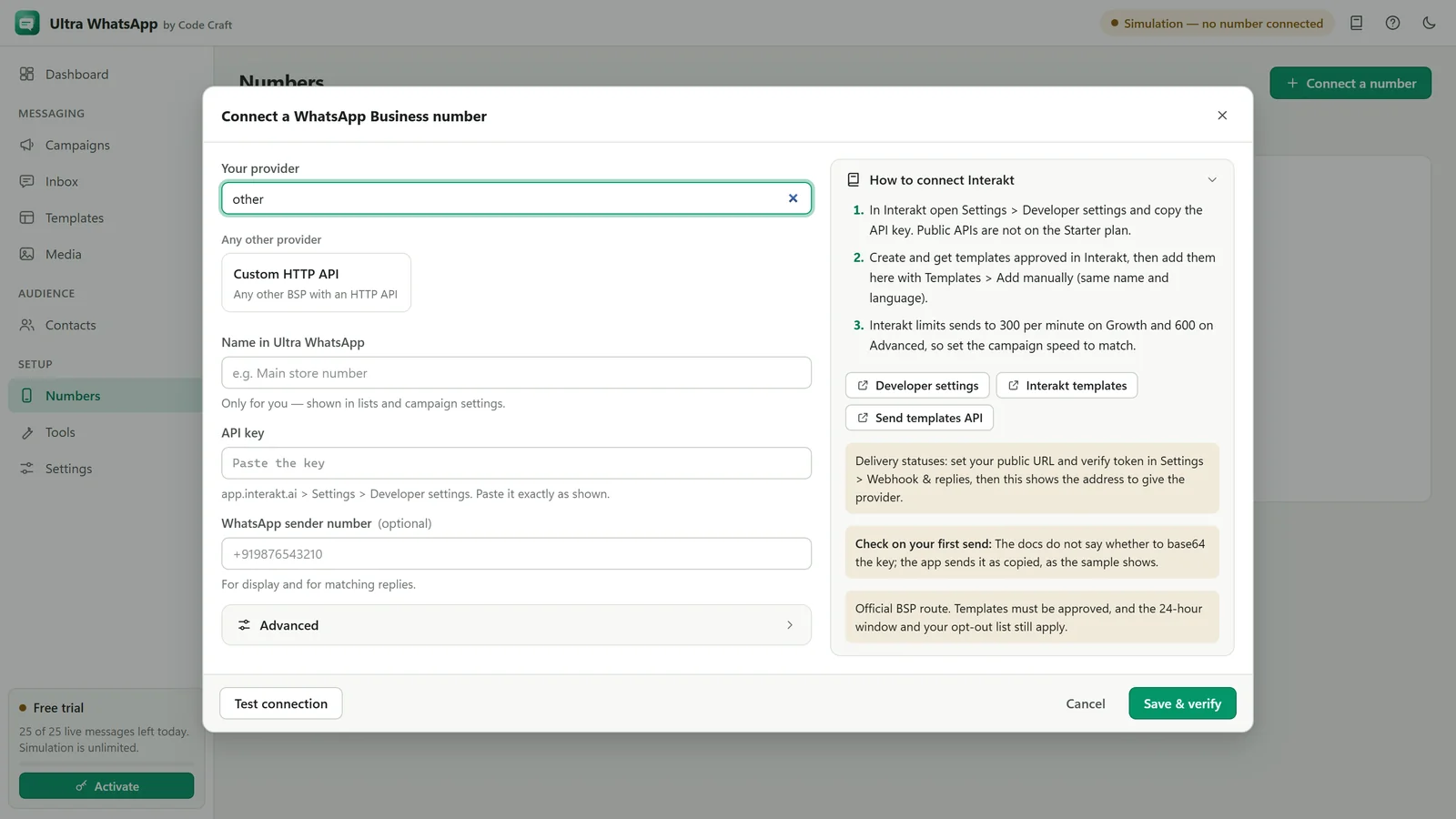
- In Ultra WhatsApp open Numbers, click Connect a number, and choose I already have my details. Pick Vonage from the list and paste the key, secret and number, and pick the API region. Click Test connection, then save.
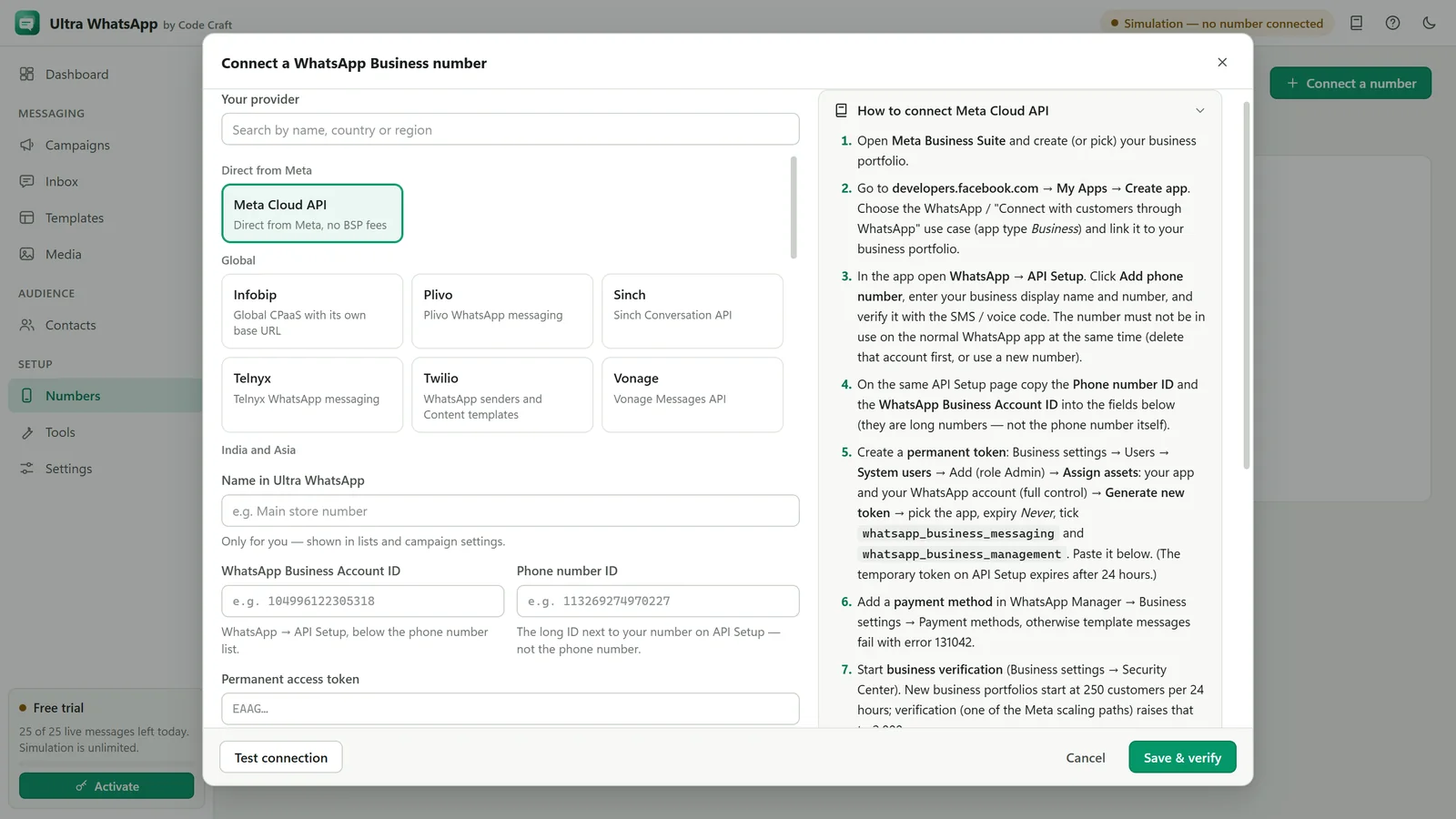
- Add each approved template with Templates, Add manually, exactly as approved. The app cannot read this provider's template list.
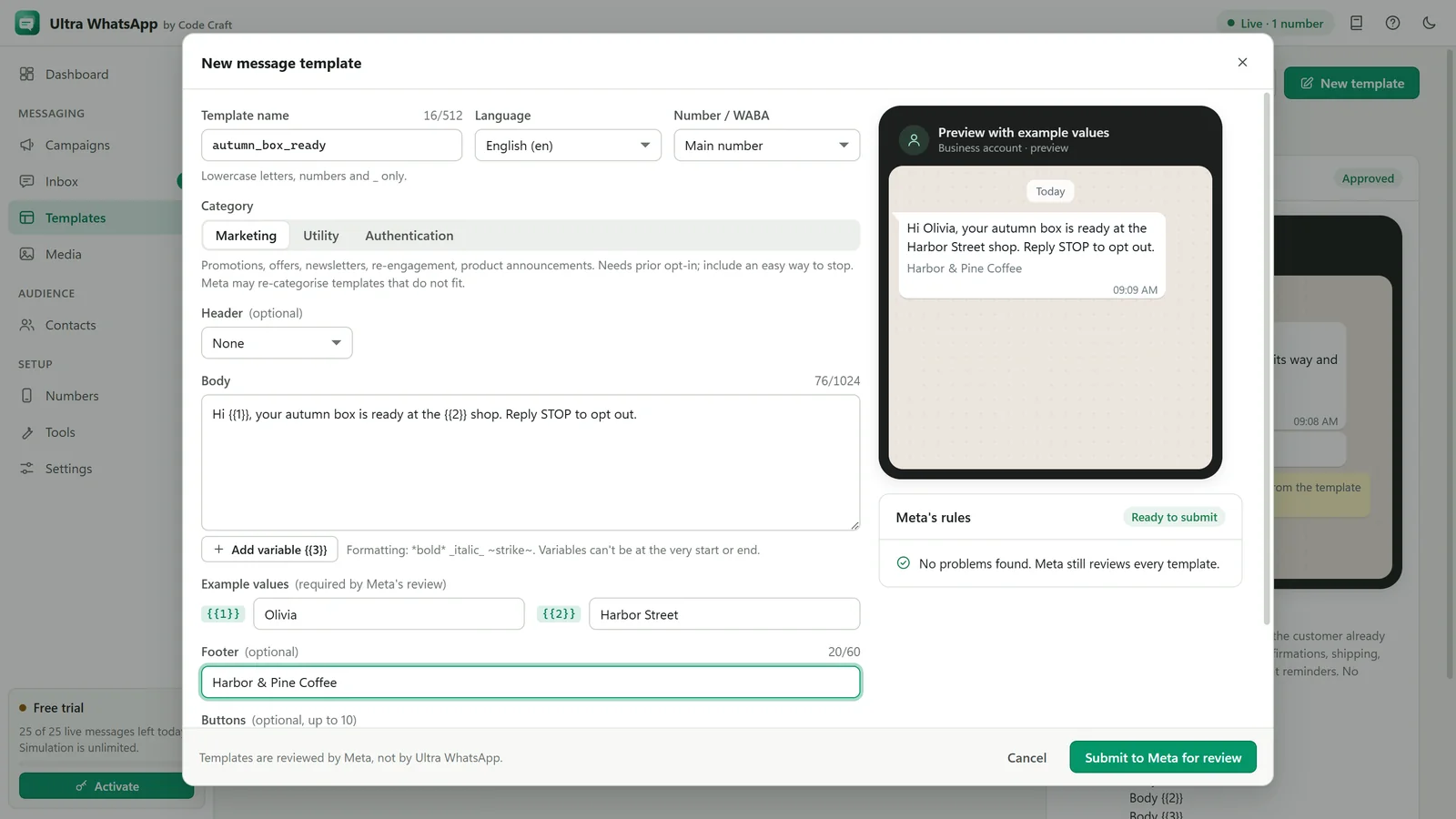
- For delivery statuses, start the receiver under Settings, Webhook & replies, give it a public HTTPS address, and paste the status address Ultra WhatsApp shows for Vonage into Vonage's webhook settings. It contains your secret verify token, so keep it private.
- Send a test template to your own number with Tools, Quick single send.
Good to know
- Customer replies stay in Vonage's dashboard. The Ultra WhatsApp inbox receives replies from the Meta Cloud API, 360dialog, Gupshup and Twilio.
- Vonage adds its own platform or per-message fees to Meta's charges; check its current plans.
When Vonage makes sense
A provider can make onboarding easier and may be the account you already have, but it adds its own platform or per-message fees on top of Meta's charges. The rules stay the same either way: approved templates, opted-in contacts and Meta's messaging limits. Where the steps above set up a webhook, delivery statuses need that address saved in the provider's dashboard.
Dashboards change their menus from time to time; if a label differs, look for the API keys or developer section. Stuck? See the Ultra WhatsApp troubleshooting table, the Ultra WhatsApp user guide, or contact us.
Related guides and pages
- Ultra WhatsApp setupSinch WhatsApp API Setup, Step by StepA Conversation API app with WhatsApp, the project and app IDs, an access key and the matching region.Open
- Ultra WhatsApp setupTelnyx WhatsApp API Setup, Step by StepConnect your WhatsApp Business Account, create an API key, add the number and sync templates from Telnyx.Open
- Ultra WhatsApp manualConnect a WhatsApp Cloud API NumberThe phone number ID, the WhatsApp Business Account ID, a permanent token and checks for each.Open
- Ultra WhatsApp manualWhatsApp Message Templates: Sync, Create, ApproveSync approved ones, write new ones with header, body, footer and buttons, and submit them for approval.Open
- Ultra WhatsApp manualWhatsApp Webhook and Replies Inbox SetupA public HTTPS address, the verify token, receiving delivery statuses, and answering replies in 24 hours.Open

- Ultra WhatsAppBulk WhatsApp Software Price: $79 a YearUltra WhatsApp is from $79 a year, $29 a month or $199 once, for 1, 3 or 10 devices, with a 15-day refund. Meta bills separately.Open
WhatsApp is a trademark of Meta Platforms, Inc. Ultra WhatsApp is an independent product by Code Craft and is not affiliated with or endorsed by Meta.